

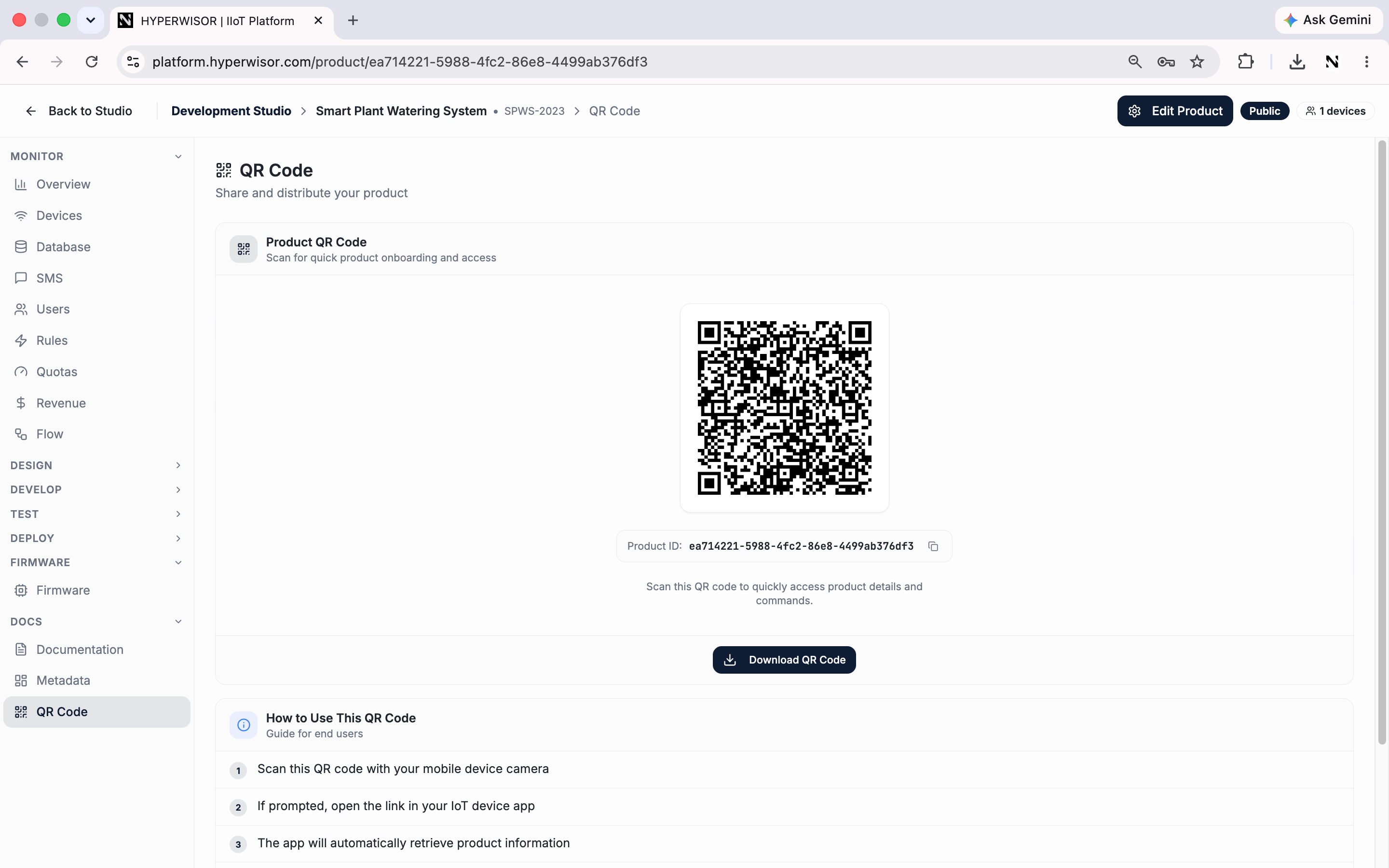
The QR Code tab — download the product's onboarding QR to affix to the hardware.
Download the QR
1
Open the product's QR Code tab
In the product dashboard, go to the QR Code tab. It shows the product’s
QR and its Product ID.
2
Download it
Click Download QR Code. It saves as a PNG named
<product-name>-QR.png.3
Affix it to the device
Print the QR and stick it on the device itself, or include it on the
packaging, so the end user can scan it during onboarding.
What the QR contains
The QR encodes a small JSON object identifying the product:The Product ID is also shown on the QR Code tab and can be copied directly — handy
for support or manual flows.
Next: onboard via the app
Scan, add, and configure Wi-Fi.