

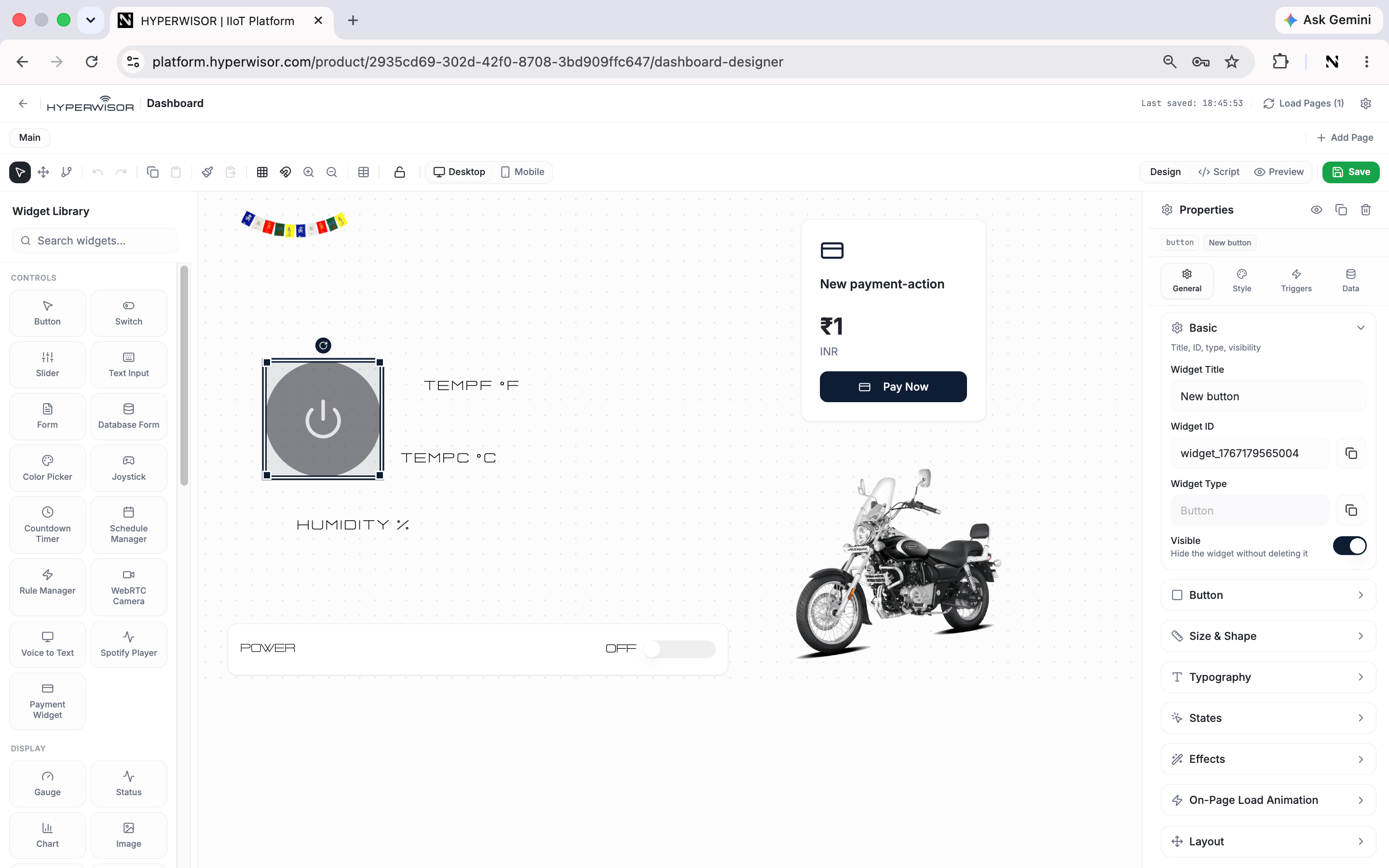
The Dashboard Designer — widget library on the left, canvas in the middle, and the four-tab Properties panel on the right.
The canvas
Drag widgets from the library onto the canvas, then position, resize, and rotate them. There are 50 widgets across five categories — see the Widget Reference.The four-tab properties model
Select a widget and its settings appear in four tabs, always in the same order. This is what makes the panel predictable: a given setting always lives in the same place across every widget.
The rule of thumb: a color is always Style; a font is always Style → Typography;
a label is always General → Content; an on-click command is always Triggers.
Only which sections appear varies per widget — never their position.
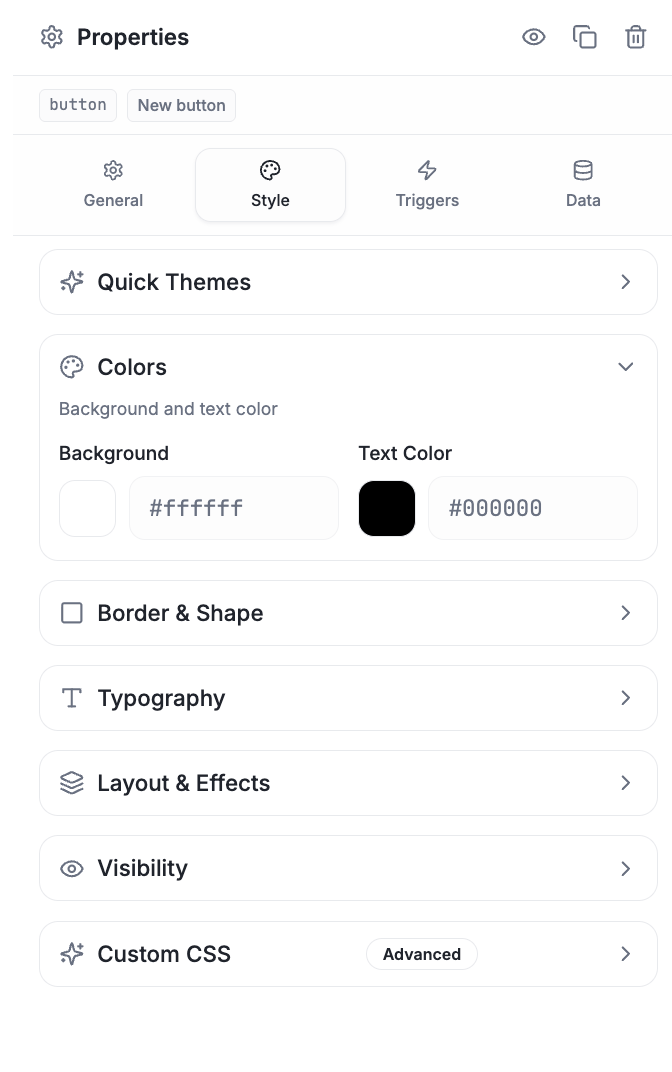
The Style tab — Quick Themes, Colors, Border & Shape, Typography, Layout & Effects, Visibility and Custom CSS, in a fixed order.
Design, Preview, Script
The designer has three modes:- Design — edit the canvas and widget properties
- Preview — run the dashboard with live data
- Script — add JavaScript logic (see the Script API)
Binding data
Connect widgets to device payloads.
Widget reference
All 50 widgets by category.