

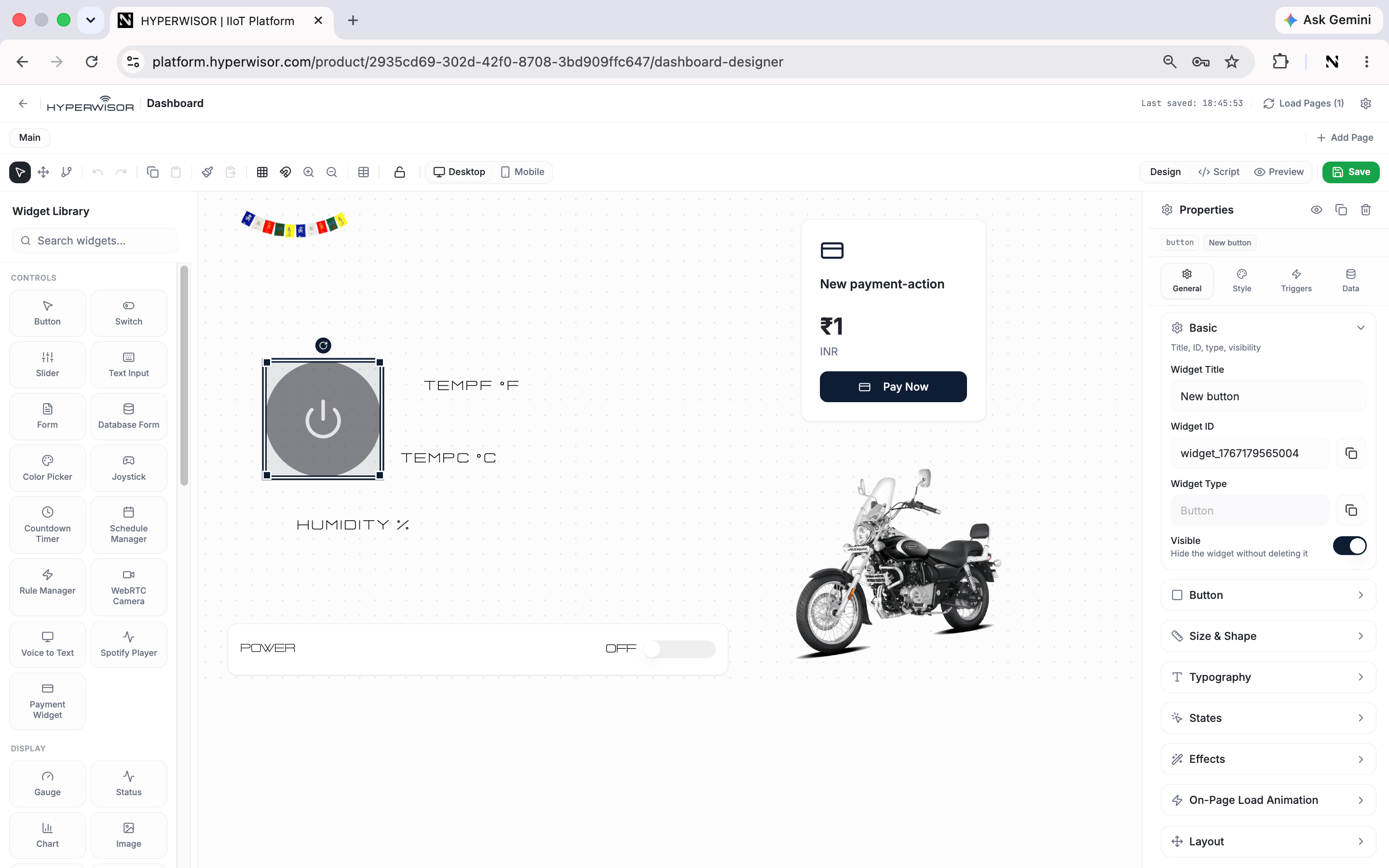
The toolbar sits at the top of the Dashboard Designer and gives you the canvas-level controls: history, clipboard, alignment, grid, zoom, and the design/preview modes.

Editing & history

ToolWhat it does
UndoStep back through your changes
RedoStep forward again
CopyCopy the selected widget(s)
PastePaste copied widget(s)
Copy StyleCopy just the styling from one widget to apply to another

Alignment & distribution

Select two or more widgets to enable the Align & Distribute tools:
ToolWhat it does
Align left / rightLine up selected widgets on an edge
Align center (horizontal / vertical)Center them on an axis
Align top / bottomLine up vertically
DistributeEven out spacing between three or more
Group widgetsCombine into a single movable group
Ungroup widgetsBreak a group back into individual widgets

Grid & snapping

ToolWhat it does
Toggle GridShow/hide the alignment grid on the canvas
Snap to GridSnap widgets to grid lines as you move/resize them
Use these for pixel-clean layouts — snapping keeps everything aligned without manual nudging.

Zoom

ToolWhat it does
Zoom In / Zoom OutScale the canvas view to work on detail or see the whole layout

Preview & responsive

ControlWhat it does
Desktop / MobilePreview and design for each viewport
Design / PreviewSwitch between editing and running the dashboard with live data
ScriptOpen the Script tab for custom logic
SaveSave the dashboard
Design and Preview are the two modes you’ll toggle constantly — edit in Design, then flip to Preview to see widgets update with real device data.

The designer

The canvas and the four-tab model.

General tab

Per-widget position, size, and identity.