

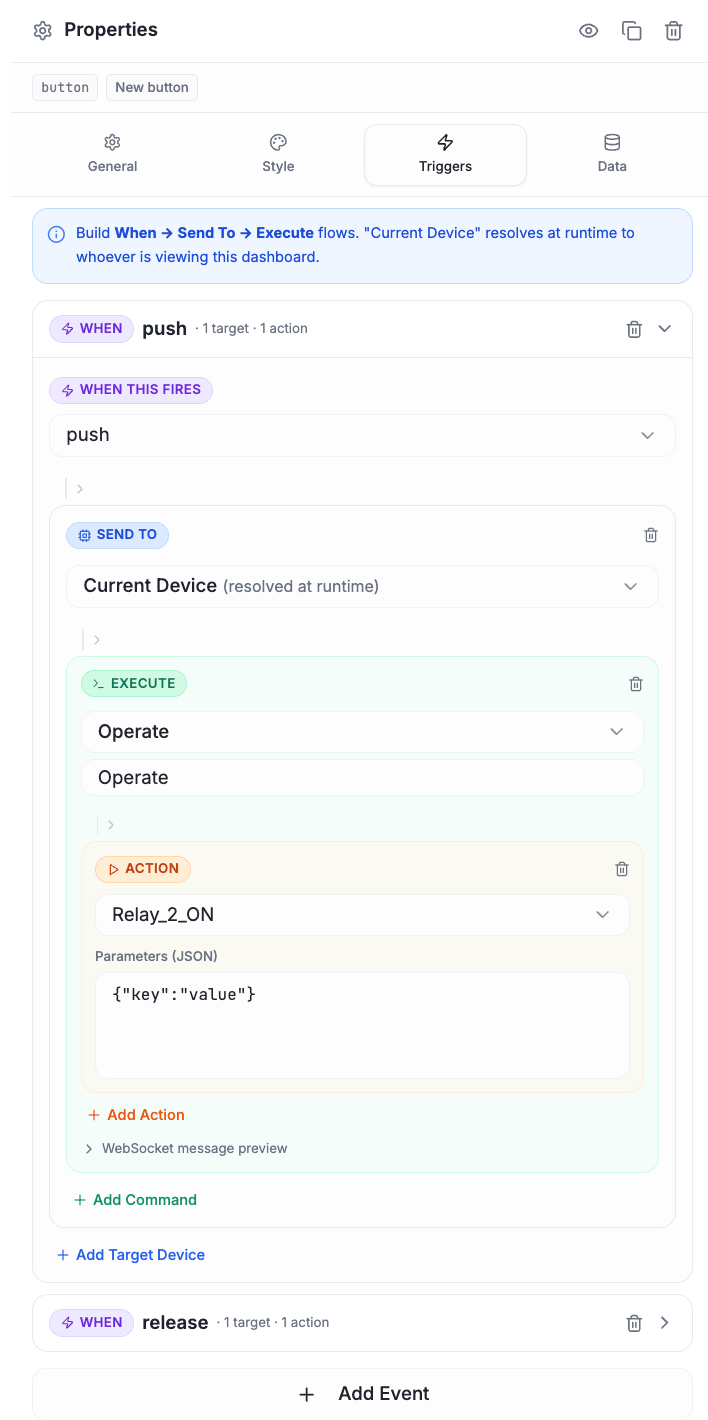
The Triggers tab — a When → Send To → Execute flow sending an Operate action to the current device.
The mental model
Hold three ideas in your head and Triggers stop being confusing:1 · A widget is a remote
Interacting with it fires an event (a press, a toggle, a slide). That’s the
signal.
2 · A trigger is the wiring
You decide what that signal sends and where: a command, to a device.
That’s the whole job of the Triggers tab.
3 · Firmware is the receiver
Your device matches the command/action and acts on it — reading any values
that rode along.
The dashboard is the sender; your firmware is the receiver. A trigger is the wire between them. Everything on this page is just filling in that wire.And the key thing people miss: value widgets carry a payload. A slider, color picker, or form automatically sends its current value along the wire (under a known key) — you don’t route it by hand. More on that below.
The model: WHEN → SEND TO → EXECUTE → Action
Every trigger reads as one sentence:WHEN this event fires → SEND TO a device → EXECUTE a command → run an Action (with parameters).Those four pills are exactly what you see in the editor. You build a trigger by filling them in, top to bottom.
Step by step
1
Add Event — the WHEN
Click Add Event and pick when this trigger fires — e.g.
click for a
Button, toggle for a Switch, threshold for a Gauge. Each widget offers
only the events it can actually fire (see the table below).2
Add Target — the SEND TO
Click Add Target and choose which device receives the command:
- Current Device — the device this dashboard is bound to (the common case)
- Manual Device ID — type a specific device/target ID to send elsewhere
3
Add Command — the EXECUTE
Click Add Command and pick one of your product’s commands (Select
command…), or type a command name. These are the commands you defined when
you created the product.
4
Add Action — with parameters
Under the command, Add Action and pick the action (e.g. Leave params empty (
ON, OFF,
setSpeed). Give it parameters as JSON if the action needs input:{}) for actions that take none.on trigger and an off trigger.
What actually gets sent
Under the hood, a trigger builds this message to each target and sends it when the event fires:setUserCommandHandler —
that’s the “down” half of the core loop.
Which events each widget fires
Every widget supports the common lifecycle events —load, ready,
destroy, update, visible, hidden — plus its own interaction events:
Widgets that emit a value (auto-injected params)
Some widgets don’t just fire an event — they emit a value (a slider’s position, a picked color, a form’s fields). For these, the platform automatically injects that value into every action’s params when the event fires. You do not type the live value by hand.How the merge works
The injected value is merged into the static params you configured, and wins on a key clash:{} (or add extra static keys) — the
value key arrives automatically. In firmware, read it as params["value"].
Reading emitted values in firmware (Arduino)
In your command handler, usefindParams(msg, command, action) to get the action’s
params, then read the injected key. These match the dashboard triggers above.
Slider → params["value"]
params["color"] / r g b
params["<fieldId>"]
p["r"] | 0 uses ArduinoJson’s default-value operator — it yields 0 if the key
is missing, so a partial payload won’t crash. The command and action names in
findParams(...) must match the trigger’s EXECUTE command and Action.Conditional events (the “when a value crosses…” case)
For value widgets, some events are the condition:- Gauge →
threshold/min/max— fires when the bound value crosses that point. Example: a Gauge with athresholdtrigger that sendsOperate → OFFwhen temperature exceeds the limit. - Slider →
min/max— fires at the ends of the range.
Worked examples
A button that starts a device
A switch that toggles a relay
A slider that sets speed live
The slider’s position is injected automatically asvalue — leave params empty.
params["value"]. Add extra static keys if you want them
alongside — e.g. { "unit": "rpm" } → device gets { "unit": "rpm", "value": 80 }.
A gauge that shuts things off past a threshold
Tips & gotchas
- Params must be valid JSON — the editor flags
Invalid JSON. Use{}for no parameters. - “Current Device” vs. “Manual Device ID” — use Current Device unless you’re intentionally commanding a different device from this widget.
- Multiple triggers per widget — a Switch typically needs two (one for
on, one foroff). - No hardware to test? Fire the trigger and watch it arrive in the LiveLink Simulator’s Device side.
Define commands first
The commands your triggers execute.
The core loop
How commands reach the device.