

1. Open the Dashboard Designer
In your product’s Studio, open Design → Dashboard Designer. You get a blank canvas and a widget library.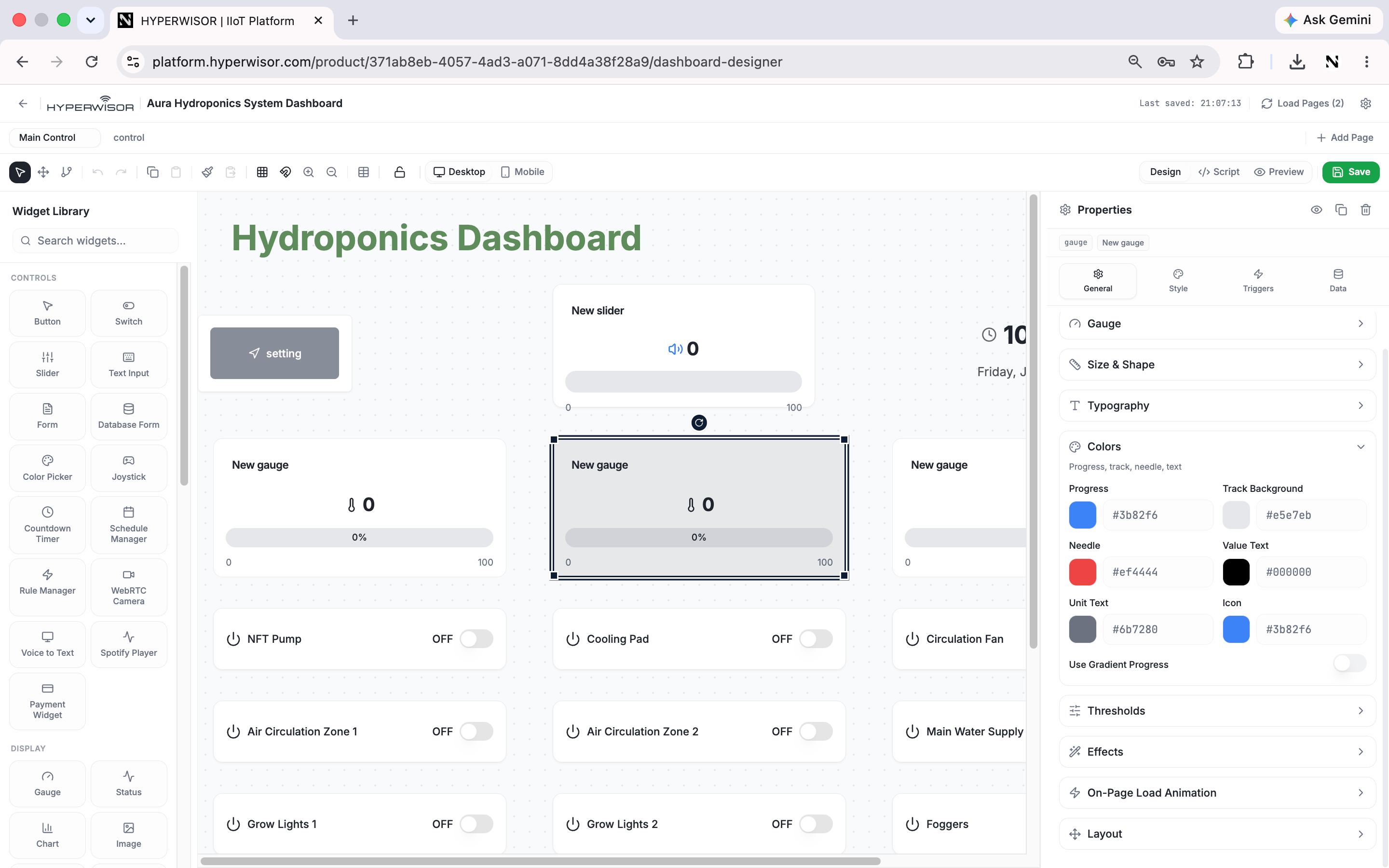
The Dashboard Designer — drag widgets onto the canvas and tune their properties on the right. No code.
2. Add a gauge (to read a value)
Drag a Gauge onto the canvas. In its General tab, set the widget ID totempGauge.
The widget ID is the crucial link. In Lesson 4, firmware will push a value to
tempGauge and this gauge will move. Pick IDs you’ll remember.3. Add a switch (to send a command)
Drag a Switch onto the canvas. In its Triggers tab, set it to send your product’sOperate command — ON when toggled on, OFF when off (the command
you defined in Lesson 1).
4. Save
Save the dashboard. You now have a UI with:- a gauge waiting for a value on
tempGauge - a switch that will send
OperateON/OFF to a device
A saved dashboard with a Gauge (ID
tempGauge) and a Switch bound to Operate.Designer reference
The four-tab model in depth.
Next: bring it to life
Firmware — or a simulated device.